
Product handbook
Find something to read, open the invitation-only notebook, or learn how a new post becomes visible to readers.
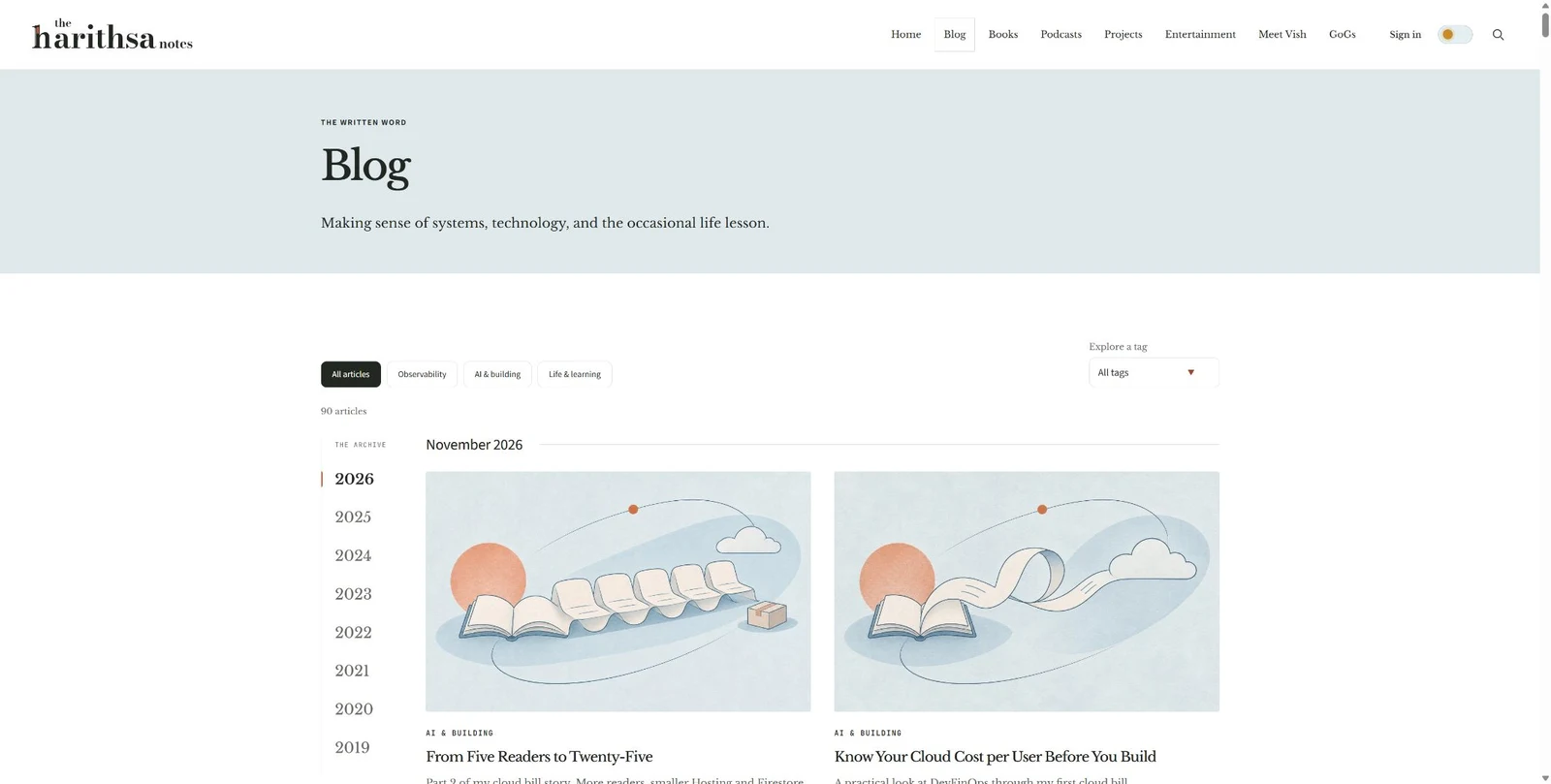
Find a story
Open Blog and choose a topic or a tag. The archive lets you jump by year and month. Books has genre and rating filters, and Projects can be filtered by topic.
The header search opens a dialog over the current page. Type a few words and choose a result. The demo uses “cloud cost” to find an article. The Documentation link in the live site's footer opens this guide collection.
- Open Search in the header.
- Type cloud cost and wait for suggestions.
- Select Know Your Cloud Cost per User Before You Build. Use All articles to return to the archive.
Open People and Journal
People and Journal is an editorial reading room with two collections. A Google sign-in is required and the site owner must have invited the account. An invitation gives reading access to published posts and their protected images.
- Open People and Journal and sign in with the invited Google address.
- Choose Journal or People and select a post from that collection.
- If access is denied, check which Google account you used and ask the site owner to verify the invitation and expiry.
Draft and publish in Workspace
Workspace is restricted to the site owner. Write includes Blog, Books, Projects, Podcasts, Entertainment, Photos, GoGs, Pages, Tags, Journal, and People.
Publishing a Journal or People post makes it available to valid invited readers. Publishing a Blog post makes it public.
- Choose the collection under Write and open or create an entry.
- Fill in the required properties. For an article, add its title, date, cover and descriptive alt text, then write the body. Wait for the draft to save.
- Open Preview and read the saved draft. Check links, media and captions, including on a narrow screen.
- Click Publish and check the result in the appropriate reader view. Allow up to roughly 30 seconds for a public result to refresh.
Correct a published entry
Open the entry and save your changes as a draft. Publish again to apply them. History restores a saved revision as a new draft for review. Unpublish removes eligible entries from their reader view while preserving revision history.
If a newer edit conflicts with yours, download your unsaved copy before reloading and compare it with the latest saved draft. Upload JPEG, PNG, or WebP images up to 8 MiB and check the preview after upload.